

How to Update Video Card Drivers: Full 2026 UK Guide
- August 20, 2026
- 0
If your games are stuttering, your screen’s flickering, or a new release simply won’t launch properly, the fix is usually to update your video card drivers, and it



9621 Agnes Crossing, Lake Suzanneview, New Mexico Island 84604-9295.
If your games are stuttering, your screen’s flickering, or a new release simply won’t launch properly, the fix is usually to update your video card drivers, and it
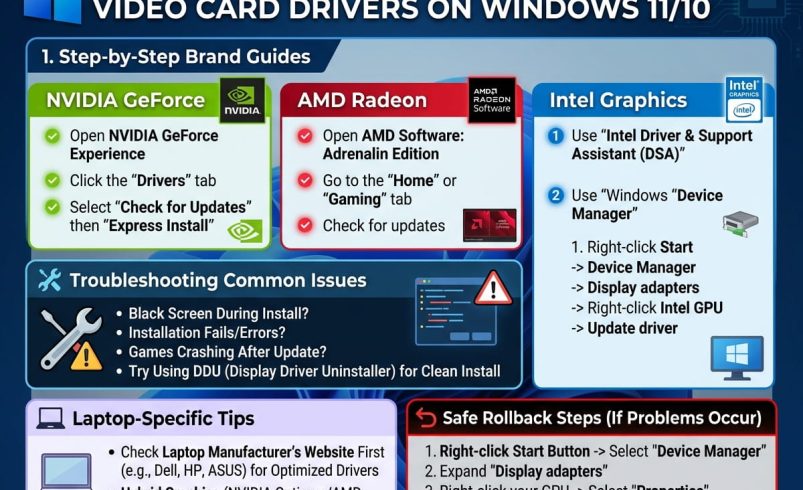
If your games are stuttering, your screen’s flickering, or a new release simply won’t launch properly, the fix is usually to update your video card drivers, and it takes about five to ten minutes once you know where to look. The quickest route is your GPU maker’s own free app: the NVIDIA App, AMD Software Adrenalin Edition, or the Intel Driver and Support Assistant, all of which scan your system, find the latest driver, and install it in a few clicks.
This guide covers every method properly, not just the quick one, including Device Manager, Windows Update, manual downloads, laptop-specific gotchas, clean installs with Display Driver Uninstaller (DDU), and what to do if a driver update goes wrong. Whether you’re calling this updating your graphics driver, upgrading your GPU driver, or just trying to fix a specific game crash, everything you need is below.
A graphics driver is the software layer that lets Windows talk to your GPU, whether that’s an NVIDIA GeForce card, an AMD Radeon card, an Intel Arc card, or the integrated graphics built into your laptop’s processor. When it’s outdated, mismatched, or corrupted, you tend to see stuttering, screen tearing, black screens, missing resolution options, or games crashing outright.
Updated drivers aren’t just about performance either. They also carry security patches, since a driver is low-level software with deep access to your system, and manufacturers regularly release fixes for known vulnerabilities alongside performance and compatibility improvements. New game releases in particular often ship alongside “day one” driver updates from NVIDIA and AMD specifically optimised for that title, so if a brand new game runs badly, an outdated driver is one of the first things worth checking.
Before updating anything, it helps to know exactly what you’re working with.
Method 1: Device Manager Right-click the Start button, select Device Manager, then expand Display adapters. You’ll see your GPU listed by name, such as NVIDIA GeForce RTX 4060, AMD Radeon RX 7800 XT, or Intel Iris Xe Graphics. Right-click it, choose Properties, then the Driver tab to see the exact version number and install date.
Method 2: DirectX Diagnostic Tool Press Windows key + R, type dxdiag, and press Enter. Click the Display tab to see your GPU name, manufacturer, and driver version all in one place, which is handy if you need to quote this information to a support team.
Method 3: Windows Settings On Windows 11, go to Settings > System > Display > Advanced display. Under Display information, you’ll see the GPU name next to your connected monitor.
This is the method most people should use most of the time, since it’s official, free, and specifically built for your exact hardware.
NVIDIA has retired GeForce Experience, its long-running companion app, and replaced it with the NVIDIA App, which officially took over from GeForce Experience and the old NVIDIA Control Panel. If you’re still running GeForce Experience, it no longer receives feature updates and NVIDIA recommends switching over.
Unlike its predecessor, the NVIDIA App doesn’t require you to log in with an account just to download drivers, which is a genuine improvement.
AMD’s equivalent tool comes pre-installed on most systems with a Radeon GPU and handles driver detection and updates in one place.
Whether you’ve got a dedicated Intel Arc card or integrated Intel graphics (UHD or Iris Xe), the process is the same.
Intel’s Arc graphics drivers have matured considerably, with reliable monthly updates and far better game compatibility than the early releases.
[Image: Screenshot of the NVIDIA App Drivers tab showing an available update]
This is the built-in Windows method, and while it’s not always the most current option, it’s worth knowing since it works identically for NVIDIA, AMD and Intel cards.
The catch is that Device Manager often isn’t running the newest driver version, since Microsoft doesn’t always push the very latest release through this channel immediately. It’s a reasonable fallback if you can’t or don’t want to install a manufacturer app, but it shouldn’t be your first choice if performance or a specific bug fix matters.
Windows Update also distributes some GPU driver updates automatically as part of routine system updates.
This method is convenient but tends to lag behind the manufacturer’s own release schedule, sometimes by weeks or longer, so it’s best treated as a backup rather than your main route for getting your GPU driver current.
If you’d rather skip the companion apps entirely, or you’re setting up a new PC and want a specific driver version, downloading directly works too.
Run the installer once downloaded and follow the on-screen prompts. This is genuinely the most reliable method if a companion app is misbehaving or refusing to detect an update.
This is a step most generic guides skip, and it causes real headaches for a lot of people.
Many laptops, particularly from Dell, HP, Lenovo, ASUS and Alienware, use GPUs with custom hardware IDs, meaning the generic driver straight from NVIDIA, AMD or Intel’s website may be rejected with a “not compatible” error. If that happens, go to your laptop manufacturer’s own support site, search for your exact model number, and download the graphics driver from there instead. It’s an extra step, but it’s the fix for most “driver won’t install” problems on laptops.
Laptops with switchable graphics (an integrated Intel or AMD chip alongside a dedicated NVIDIA or AMD GPU) sometimes need both drivers updated, and Windows may not always switch to the dedicated GPU automatically for every app. Check under Settings > System > Display > Graphics to set which apps use your high-performance GPU specifically.
[Image: Windows 11 Graphics settings screen showing app-specific GPU preference]
If you’re having persistent display issues, artifacts, crashes, or you’re switching between an NVIDIA and AMD card, a standard driver update sometimes isn’t enough because Windows installs the new driver on top of old, leftover files rather than fully removing them. A clean install fixes this by wiping every trace of the old driver first.
A couple of things worth flagging honestly: DDU will remove any custom settings you’ve configured in your GPU control panel, such as colour profiles or multi-monitor setups, so you’ll need to redo those afterwards. It’s also not a general system cleaner, it only targets graphics (and some audio) drivers, so don’t expect it to fix unrelated Windows problems.
Plenty of software promises to scan your PC and update all your drivers automatically for a fee, and it’s worth being straightforward about these.
For graphics drivers specifically, you don’t need them. Every update you’d want is available for free, directly and officially, through the NVIDIA App, AMD Adrenalin, the Intel Driver and Support Assistant, or a manual download from the manufacturer’s own site. Many third-party driver updaters bundle unwanted extras or push you toward paid subscriptions for something that’s genuinely free elsewhere, so there’s rarely a good reason to use one purely for GPU drivers.
Occasionally a new driver causes more problems than it solves, black screens, crashes, or worse performance than before. Windows has a built-in way to undo this.
If rollback isn’t available and the newest driver has left your system unstable, both NVIDIA’s and AMD’s driver download pages let you pick and download previous driver releases, so you’re not stuck on a broken version.
There’s no fixed rule, but a few situations should prompt an update straight away rather than waiting.
Update immediately if you’re seeing screen flickering, game crashes, or visual glitches, since these are the classic symptoms of a driver problem. Update before playing a major new game release, since GPU makers frequently ship day-one optimised drivers alongside big titles. Update after upgrading Windows itself, since a new Windows version can sometimes expose compatibility issues with an older driver. Outside of these triggers, checking once a month through your manufacturer’s app is a sensible habit that keeps you reasonably current without becoming a chore.
How do I update my graphics driver on Windows 11?
The quickest way is through your GPU manufacturer’s free app, the NVIDIA App, AMD Software Adrenalin Edition, or the Intel Driver and Support Assistant, which scans your system and installs the latest version automatically. Alternatively, use Device Manager by right-clicking your GPU under Display adapters and selecting Update driver.
How do I know if my graphics driver needs updating?
Check your current version in Device Manager under Display adapters, then compare it against the latest version listed on your manufacturer’s website. Signs you’re overdue include screen flickering, stuttering in games, crashes in graphics-heavy apps, or a new game refusing to launch properly.
Is GeForce Experience still available for NVIDIA driver updates?
No, NVIDIA has officially replaced GeForce Experience with the NVIDIA App, which combines driver downloads, game optimisation and overlay features into one unified tool. The old app no longer receives feature updates, so switching to the NVIDIA App is recommended.
Do I need to update my integrated graphics driver too?
Yes, if your laptop uses switchable graphics (an integrated chip alongside a dedicated GPU), both drivers can affect performance and should be kept current. Check under Settings, System, Display, Graphics to see which GPU each app is set to use.
Why won’t my graphics driver install on my laptop?
This is often because laptop GPUs, particularly on Dell, HP, Lenovo and ASUS machines, use custom hardware IDs that reject the generic driver from NVIDIA, AMD or Intel’s website. Download the driver from your laptop manufacturer’s own support site using your exact model number instead.
What is a clean install and when do I need one? A clean install removes all old driver files and settings before installing a new driver, rather than installing on top of leftover files from the previous version. It’s worth doing if you’re having persistent display issues, switching GPU brands, or a standard update hasn’t resolved a problem, and it’s done using a free tool called Display Driver Uninstaller (DDU).
Are third-party driver updater tools safe to use? They’re generally unnecessary for graphics drivers specifically, since every update is available free and directly from NVIDIA, AMD or Intel. Many third-party tools bundle unwanted software or push paid subscriptions for something you can get properly and safely elsewhere.
How do I undo a graphics driver update that caused problems?
Open Device Manager, right-click your GPU under Display adapters, go to Properties, then the Driver tab, and click Roll Back Driver. If that button is greyed out, download a previous driver version manually from the manufacturer’s website instead.