
GE Universal Remote Codes: Full Programming Guide (2026)
- August 20, 2026
- 0
If your GE universal remote won’t pair with your TV, the fix almost always comes down to one thing: using the wrong code for your remote’s version. GE



9621 Agnes Crossing, Lake Suzanneview, New Mexico Island 84604-9295.
If your GE universal remote won’t pair with your TV, the fix almost always comes down to one thing: using the wrong code for your remote’s version. GE
If your GE universal remote won’t pair with your TV, the fix almost always comes down to one thing: using the wrong code for your remote’s version. GE universal remote codes aren’t one universal list. They’re split into four separate code sets, called CL3, CL4, CL5, and CL6, and using a code from the wrong set is the most common reason these remotes fail to pair. Find your version, grab the matching code, and most GE remotes connect within a minute or two.
This guide walks through how to identify your exact remote, where to pull the correct codes from, all three programming methods, and what to do when a code doesn’t work first time. There’s also an honest note for UK readers, because this is a US brand and a few things work differently on this side of the Atlantic.
GE-branded universal remotes are made and sold by Jasco Products Company, an American manufacturer based in Oklahoma. Jasco’s official support line, warranty process, and stock availability are all built around the US market. If you’ve bought a GE remote through Amazon UK, brought one back from a trip to the US, or inherited one, everything in this guide still applies. Just be aware that stock in UK shops is patchy, prices are usually shown in dollars on Jasco’s own site, and phone support runs on US hours (Monday to Friday, 7am to 6pm Central Time, which is 1pm to midnight UK time).
If you’re shopping for a new universal remote from a UK retailer, One For All is the equivalent brand you’ll see far more often on the shelf at Currys or Argos, and it uses its own separate code system. This guide is specifically for people who already have (or are about to buy) a GE-branded remote.
Every GE universal remote code list belongs to one of four versions, and the codes are not interchangeable between them. Using a CL3 code on a CL5 remote is the single biggest cause of “the code doesn’t work” complaints.
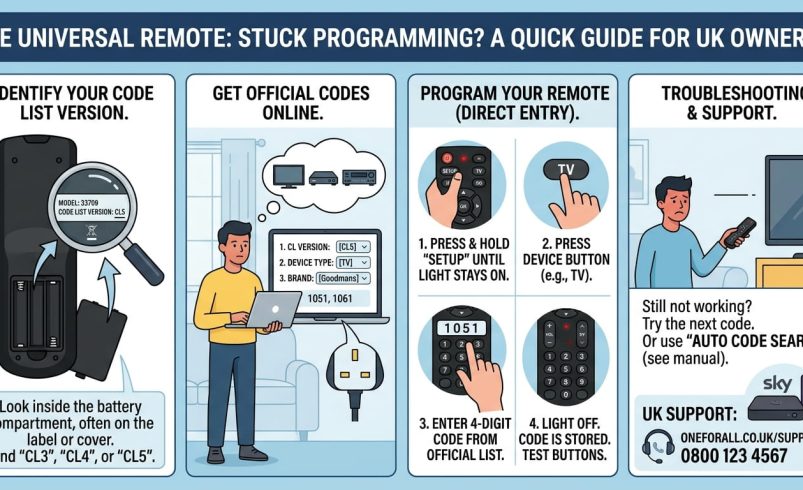
Take the battery cover off and remove the batteries. Look at the sticker inside the compartment or on the underside of the cover itself. It’ll show the model number and, printed alongside it, one of four labels: CL3, CL4, CL5, or CL6.
As a rough guide, older remotes from around 2015 or earlier tend to be CL3. Remotes bought new from around 2021 onwards are usually CL5 or CL6. That’s not a hard rule though, so always check the sticker rather than guessing from the purchase date.
This is the part where a lot of GE universal remote code list PDFs and third-party sites get it wrong, because codes get revised and reassigned over time as new TV models are added. Rather than copying a static list that may already be out of date by the time you read this, go straight to Jasco’s own lookup tool, which is kept current and is searchable by device type and brand:
Pick the page matching your sticker, then search for your device brand (Samsung, LG, Sony, Panasonic, Philips, Toshiba, Hisense, and so on all appear in the tool). You’ll usually get more than one code per brand, since manufacturers reuse remote chipsets across several TV ranges, which is exactly why the direct code entry method below tells you to work through them in order if the first one fails.
There are three ways to get a GE universal remote working, and which one suits you depends on whether you already have the code or you’d rather let the remote find it.
This is the method to use once you’ve pulled your code from the official list above.
This is the better route if you can’t find your exact model or the codes on the list don’t work. It’s slower, but it’s the most reliable fallback.
Most GE universal remotes hold their programmed codes in memory for a short window, often a few minutes, when you swap the batteries out. Work quickly, and avoid pressing any buttons while the batteries are out, and your existing programming should survive the swap without needing to redo any of the steps above.
GE universal remote control codes aren’t limited to televisions. The same lookup tool and the same three methods above apply whether you’re pairing the TV button, the DVD button, or a dedicated AUX button for a soundbar or cable box. The only thing that changes is which device button you press in step 3 of the direct entry method, and which brand section you search on the Jasco code page.
Higher-device-count models (the 4-device and 8-device versions Jasco sells) simply give you more buttons to repeat the process on, not a different process. If you’re pairing a cable or satellite box, bear in mind some boxes only respond to a handful of functions through IR control, so don’t assume a partial response means the wrong code, since it might just mean that box’s remote-control support is limited by design.
Here’s a gap a lot of guides skip past: GE universal remotes work over infrared (IR), and most streaming remotes for Roku and Fire TV use Bluetooth or RF instead. That means a standard GE universal remote cannot control those streaming devices directly, no matter what code you try.
There is a workaround. Jasco sells a specific GE 4-Device Universal Companion Remote that has a physical cradle built into the back, designed to hold your existing Roku or Fire TV remote and dock the two together. It doesn’t reprogram the streaming remote at all. It just gives you a single object to pick up, with the Roku or Fire TV buttons still working exactly as they did before. If your goal is genuinely to control a streaming stick with button presses on your GE remote, that companion model is the only GE product built to do it.
If you’ve tried the direct code and it still won’t pair, work through these in order rather than jumping straight to auto search:
Remove the batteries and check the sticker inside the compartment, or on the underside of the battery cover. It shows both the model number and the code list version (CL3, CL4, CL5, or CL6), which you’ll need before looking up any codes.
They’re four separate generations of GE’s code library, each covering a different range of device models, and codes from one version generally won’t work on a remote from another. Always match the version on your remote’s sticker to the corresponding code list before entering anything.
Yes, using the auto code search method. It cycles through every stored code for that device type until your TV switches off, then saves whichever code worked, so you don’t need to know the model at all.
This usually means the code controls basic power and channel functions but not the full command set for your specific model, which happens because some brands share overlapping but incomplete code entries. Try the next code listed for your TV brand rather than continuing with a partial match.
Not directly, because those streaming remotes use Bluetooth or RF signals rather than the infrared signal a standard GE universal remote sends. Jasco’s companion remote models get around this with a physical cradle for your existing streaming remote rather than true reprogramming.
Availability is limited compared with the US, since GE-branded remotes are a Jasco product built primarily for the American market. Check Amazon UK listings and note that pricing may show in dollars on Jasco’s own site, since byjasco.com ships mainly within the US.
Most models hold programmed codes in memory for a short period, typically a few minutes, as long as you don’t press buttons while the batteries are out. Work quickly during a battery swap to avoid having to reprogram every device.
Run the auto code search method instead of continuing to try codes manually, since it tests every stored code for that device type rather than relying on you finding the right one. If that still fails, a factory reset followed by a fresh auto search usually resolves it.